
Welcome to Teya's help centre

Card Payments
Articles
Getting started with PAX A920 Pro
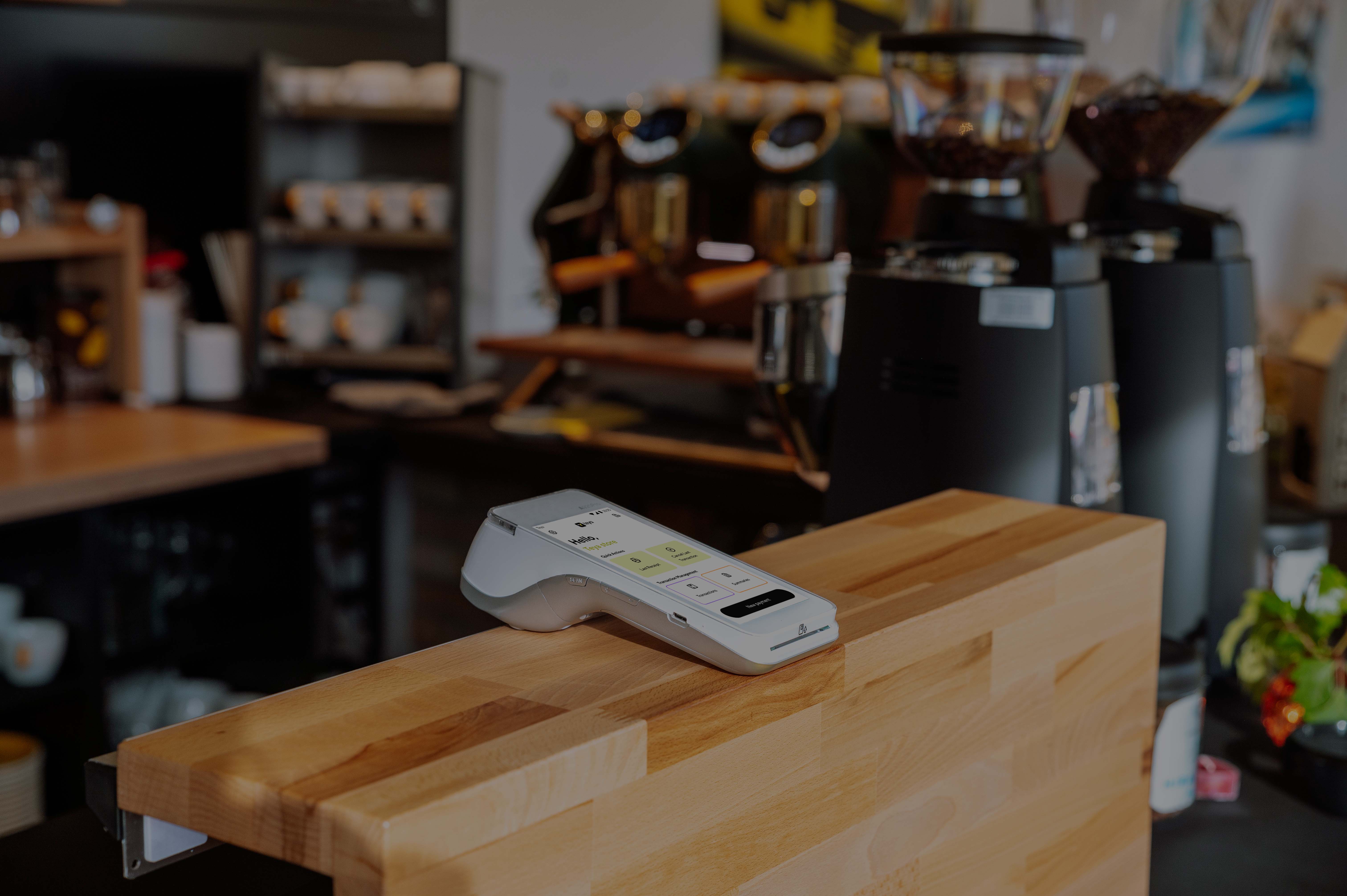
Welcome to Teya! Your card machine arrives in a Teya box, with a protection bag, and is fully charged. You just need to follow the guided setup, and your terminal will be ready for transactions. In the welcome box, you will find: Card machine PAX A920 Pro USB Type-C cable USB adaptor Spare paper
How To Refund a Transaction?
If you wish to issue a refund, you can easily do it by following these steps: Step 1: Tap the Menu located in the upper left corner. Step 5: Enter the predefined Manager PIN. Step 2: Select Transactions and Refunds. Step 6: For a partial refund, enter the specific amount to be refunded. For a full
Terminal - troubleshooting
Your terminal is an Android device that has a Teya payment app installed. To function properly, it must: Have access to the internet at all times - If your terminal isn't connected to either a mobile or a WiFi network, it won't be able to process transactions and card payments will not go through. C
How To Enable Pay by Link Payments?
Are you interested in activating Pay By Link in your card machine? Walk through the process below and kickstart your ability to receive remote payments. Enabling Pay By Link Whether you are using a Pax or a Sunmi device, enabling Pay By Link is easy. Just follow these steps: Step 1: Tap the Menu lo
Card terminal integrated with Storyous POS
*This article is intended for Teya payment terminals with the new version of the app. Learn how to connect your card terminal with Storyous POS, how to accept card payments, make refunds, and cancel the previous transaction. To begin, you’ll need to set up both your card terminal app and Storyous
How to Enable and Accept Tips?
The Tips feature on your card machine is flexible and can be set up anytime, allowing you to offer three customizable gratuity percentages that align with your business needs. Follow the steps below to learn how to enable and manage this feature on your card machine. Enabling Tips Step 1: Tap the
Getting Started with Manager PIN
What is the Manager PIN? The Manager PIN is a 4-digit code that adds an extra layer of security, restricting access to sensitive actions or information on your card machine. We highly recommend keeping this code confidential. How do I set up or change it? The Manager PIN is set up when you activate
How To Consult and Print Summaries?
If you wish to review the day’s sales, refunds, and tips or print a summary, we have a comprehensive guide ready for you! Follow our step-by-step instructions to get all the details you need: Consulting and Printing Summaries Step 1: Tap the Menu located in the upper right corner. Step 4: Click
Dynamic Currency Conversion (DCC)
When customers purchase in a foreign country using their card, our POS terminal identifies the card's currency. If it's different from the local currency, the terminal will offer Dynamic Currency Conversion (DCC). Your business isn't required to take any action regarding exchange rates, and you'll b